
Wednesday, September 12, 2012

Sunday, September 9, 2012
Stock Valuation in OpenERP LIFO, FIFO and Average Method
We have developed OpenERP Stock Valuation module which offers Stock Valuation by different methods LIFO, FIFO and Average Methods in openERP for Stock, we provided a easy feature to analyse stock details for inventory.


In OpenERP, stock management is completely integrated with the accounts, to give strong coherence between the two systems. The double-entry structure of locations enables a very precise correspondence between stocks and accounts.
When you make a purchase order, and confirm, a packing is created. Since you confirm a purchase order the stock value reports gets updated.
To Refer Stock valuation -
Step 1. Go To Product Configuration where we have three different Stock valuation Method :
- LIFO Method
- FIFO Method
- Average Method
Below Screen shows we have selected Method Average

Above screen shows product quantity in hand which is 11.
2. Create Purchse Order or Sales Order for the Product & Confirm :
Below screen shows we have created Purchase order for the Product.

3. Process Packing List
Go To Warehouse → Incoming Shipment → Edit the current picking

4. Check Stock Valuation details :
Go to Warehouse → Stock Valuation Menu

After Processing Stock Incoming movement we can check Stock valuation in Stock valuation. We analyse the stock entries by using stock journal entries.
With the help of Stock valuation we get information like current real stock and stock value and stock valuation is calculated from Average method.
5. Stock Per Period
User can review stock per period – As per Month or Year. We can run wizard and create Stock valuation record as per month or Year.

Above Wizard helps to auto create Stock valuation records and user can analyse Stock Details as per required method. User can easily review two journal entries one is on incoming picking while another is a outgoing picking and real stock
Friday, September 7, 2012
Odoo OpenERP – Paypal Integration
OpenERP Integrated with PayPal which is the most popular online payment service in use today.
The OpenERP integration with Paypal lets you perform real-time authorization and giving you a platform to collect payment against invoices. Customer can redirect to the PayPal account and using OpenERP – integration module customer can make payment for invoices.
Features of OpenERP-Paypal Integration:
- OpenERP- Paypal payment against invoice.
- Payment through OpenERP Account.
- Track Paypal payment details in OpenERP Invoices.
- Check Invoice Paypal Payment Status in OpenERP.
- Check updated Invoice Status in Paypal account.
- Automatically send email after Payment.

1. Create Customer Invoice for order

Create invoice for the same order for which we want to review stock valuation
2. Customer Creates Invoice PayPal payment record
Login by Customer login into OpenERP review customer invoice details. Now customer can create Invoice PayPal payment record

3. Redirect to PayPal account

4. Review Invoice details in PayPal.

5. Complete Transaction.

Once transaction completed Customer will receive email message about Payment done.

Above Screen shows status Paid for the transaction and Amount details. Actual amount is paid is 48.25. The difference is because of the Paypal processing charges.
Thursday, September 6, 2012
Odoo OpenERP -DVLA Integration
Driver and Vehicle Licensing Agency (DVLA) functionality Mapped in OPENERP
Ø In OpenERP we have developed a functionality where by just entering registration number you can auto fill rest of the details like Make, Model, engine & fuel information of vehicle
Ø For this we have used library file of core Python listed below:
1. URLlib2
2. xml.dom.minidom
3. parseString
Ø By use of above library file and using XML tag that is dom.getElementsByTagName we can easily have values from XML file and can be passed to OpenERP database for having information like:
1. Fuel information
2. Make
3. Model
4. Engine
5. Door Plan
We can get all this information from a single unique number from DVLA that is Car Registration number.
Ø Here is below a screen short of Data that have been fetched from xml file generated from DVLA URL

Odoo OpenERP Maventa Integration
We have developed OpenERP Maventa integration module which helps to provide functionality to sent invoice details in customers email where customer can review and accept or decline invoice.Maventa is an innovative provider of an electronic invoice services. Which helps to integrate your financial packages, integrating reporting tools.
OpenERP – Maventa Integration Functionality Features:-
- Receive Invoice details on customers Email-Id.
- Review Invoice details – Product line and Pricing details in mail received.
- Customer Can Accept or Decline Invoice anywhere.
- Customer can Download invoice in different formats (Ex: pdf, xml etc.)
- OpenERP Customer invoice payment proceeds only after customer approval.
- Invoice status is updated as per Invoice proceed.
Below is the process to Send Invoice in Customers Email Id using OpenERP and Maventa:
Go To Customers Details and add valid email id

1.Create & Send Invoice

- Check Sent to Maventa Account Checkbox to choose a feature.
- Print Performa invoice and attach a copy( refer above screen)

Validate this invoice to send Invoice to Customer Email.
2. Review Invoice & order details to Accept or Decline invoice.

Click on Provided link in the email to review invoice details, once customer can Accept or Decline the invoice.

In Business account of your company on Maventa website you can check Invoice Status.
In this way OpenERP offers easy facility for customers to approve invoicing anywhere using Maventa.
Thursday, August 30, 2012
POS Hardware Support for OpenERP POS 6.1
Pragmatic is very pleased to annouce availability of POS hardware which works with OPenERP POS 6.1 We have developed hardware integration with POS PC, Customer Display, Bar code scanner, Cash Drawer and Thermal printer. Also we have support for Magentic card reader but support needs to be built for vaious payment gatweays in differnt counties. You can see list of hardware below. This soluton is ideal for a Retail or Restaurant usage. For more details contact us sales@pragtech.co.in
P/N | Description | Features | Picture |
| Economy | 15'' All-in-One Touch POS PC |
|  |
| Premium | 15'' All-in-One Touch POS PC |
|  |
| Scanner 1 | Laser Barcode Scanner with Auto-Induction Function |
|  |
| Scanner 2 | Laser Barcode Scanner with Auto-Induction Function |
|  |
| Printer 1 | 80mm Thermal Printer with Automatic Cutter |
|  |
| Printer 2 | 80mm Thermal Printer |
|  |
| Printer 3 | 80mm Thermal Printer with Automatic Cutter |
|  |
| Printer 4 | 80mm Thermal Printer with Automatic Cutter |
|  |
| Printer 5 | 80mm Thermal Printer with Automatic Cutter |
|  |
| Cash Drawer | Cash Drawer |
|  |
| Magnetic Card Reader | Mini USB Magnetic Stripe Card Reader |
|  |
| Customer Display Economy | LED Customer Display |
|  |
| Customer Display Premium | Double Line VFD Customer Display | Support double lines display (20*2) The interface specification are based on EIA RS232C baud rate 9600 bps, 8 data bits, no parity, 1 stop bits. RS232C or USB port for option ATX POWER 4P(12V) Power connector from host or external DC power supply Black or White for option |  |
Thursday, August 23, 2012
Odoo OpenERP POS 6.1 Point of Sale Bar code Reader Support - Searching Products by reference and EAN13 ( BAR Code) :
Now a days most of the shopping centers and malls are making use of automated systems and touch-screen POS at the cashier point to eliminate the human error while billing and making the paymant. OpenERP POS is goof but it lacks searching the product by Bar code. It can search product by name and is the only option besides selecting the product by clicking mouse or with touch-screen. With thousands of products in view a cashier might take a long time to enter the product in POS. So to add product to order line searching products by Reference and EAN13 (Bar Code reader) in the touch-screen POS is essential for the POS to be usable.
We have modified the OpenERp POS to support Barcode and by reference
See the following image gallery demonstrating search of product in POS via reference and EAN13 :
1. Search the product by Reference, e.g. food item Pav Bhaji has reference as PB. The image shows the product being highlighted on entering into the search field.

2. On hitting enter the product gets added to order line as shown in the image below.
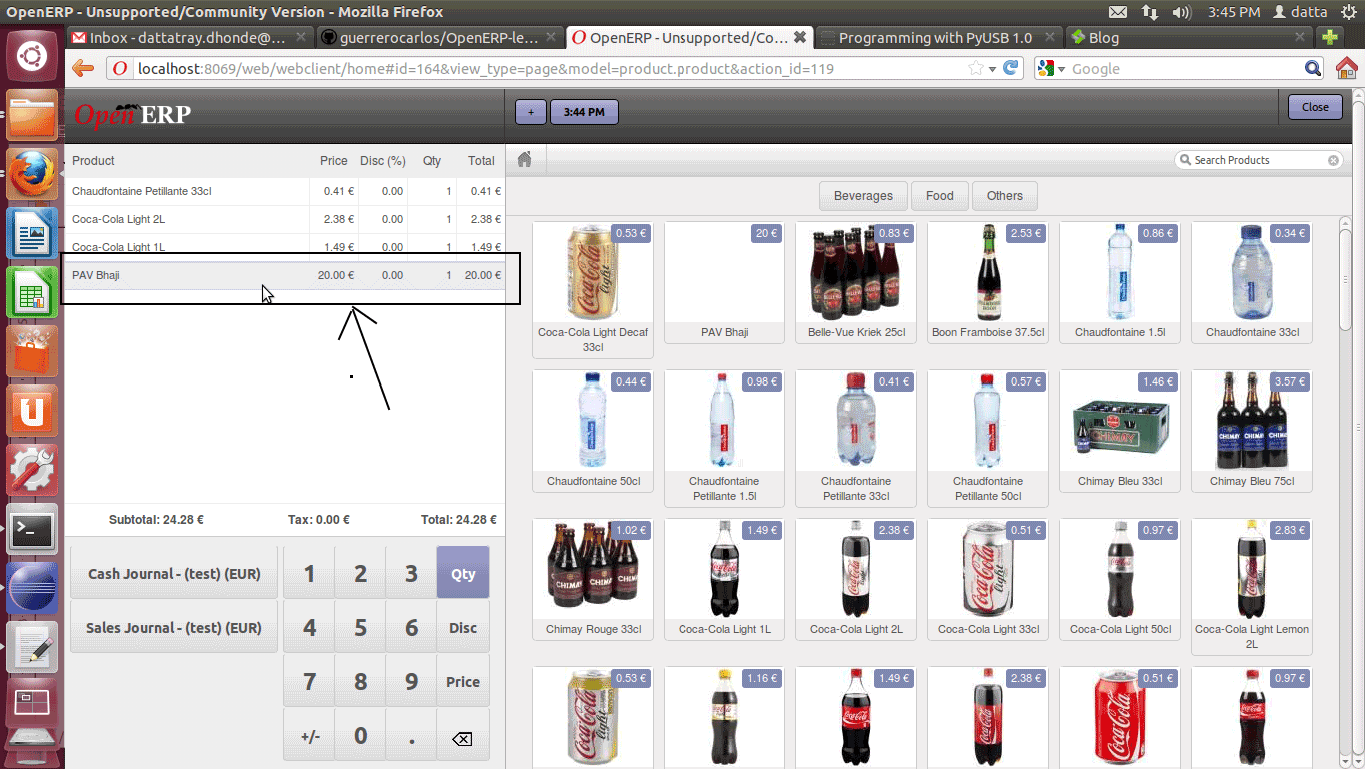
3. The following two images show searching of product by EAN13 Bar code and an update in product summary details.
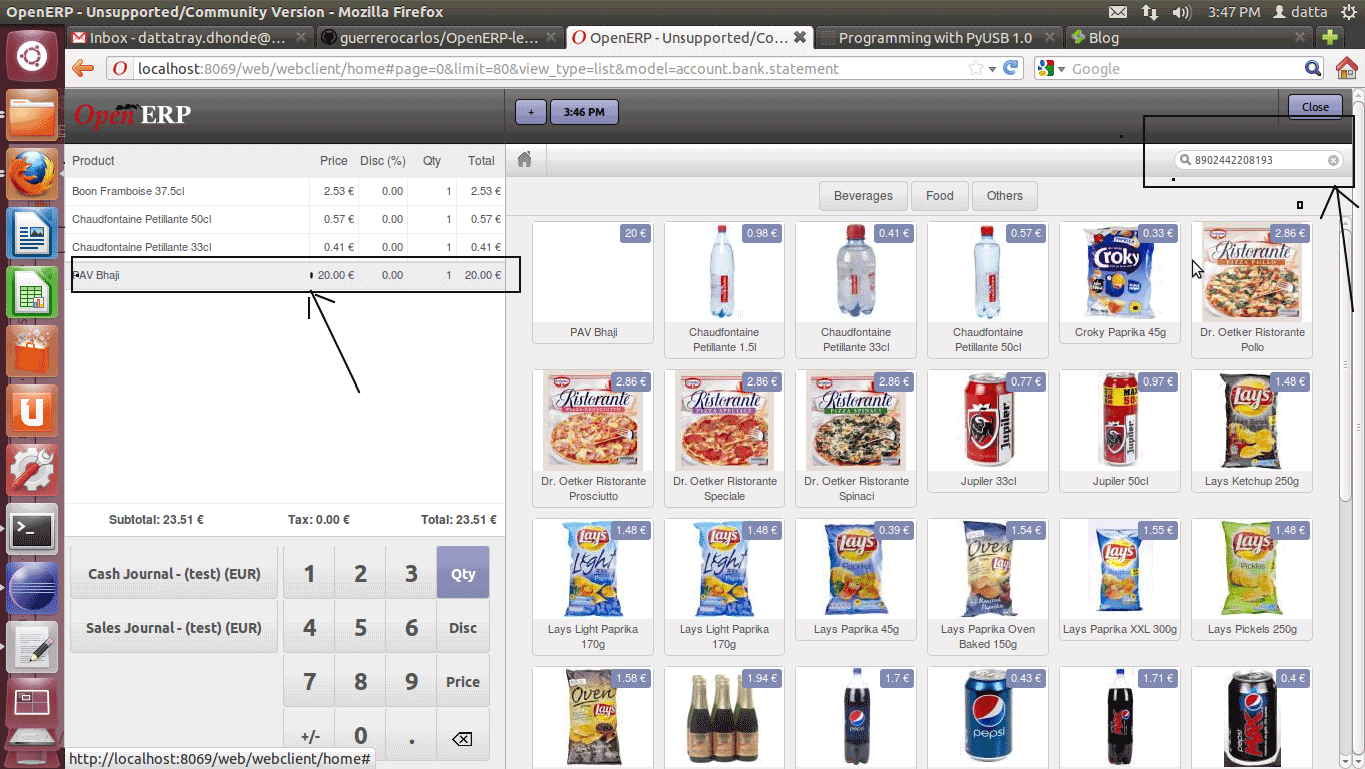
Updation in order line :

Subscribe to:
Posts (Atom)